






How to Choose a Portable Monitor (2026 Buyer’s Guide)
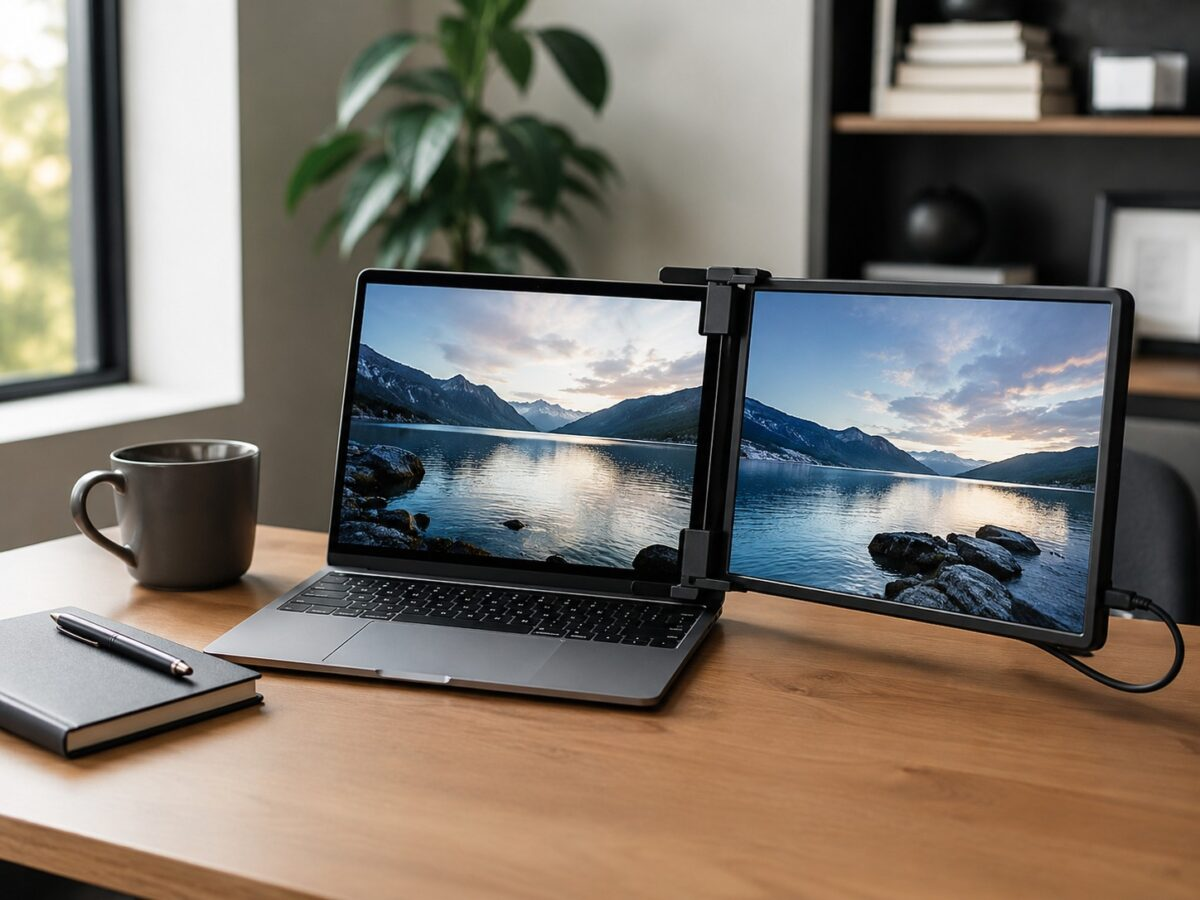
Portable monitors have gone from a niche work from home accessory to something you see everywhere, coffee shops, airport lounges, hotel rooms. The problem is there are now hundreds of options on Amazon, and the spec sheets all start to blur together after a while. Screen size, resolution, panel type, connectivity… its a lot to sort through if you havent bought one before.
This guide breaks down what actually matters when picking a portable monitor, what you can safely ignore, and which features are worth paying extra for. No product rankings here, just the info you need to make a smart pick.
Screen Size: 13, 14, 15, or 16 Inches?
Most portable monitors fall between 13.3 and 15.6 inches. right balance for most people is 15.6 inches, its big enough to actually work on without squinting, but still fits in a standard laptop bag. If you’re traveling light and portability is the top priority, a 13.3 inch screen saves noticeable weight and space.
Some newer models push to 16 inches, which is nice for spreadsheets and side by side windows but starts to feel less “portable.” And then theres the dual monitor setups like the Mobile Pixels Duex Float 2 Pro that clip directly onto your laptop lid, those are typically 12 to 14 inches and trade screen real estate for the convenience of not needing a separate stand.
One thing people overlook: a 15.6 inch portable monitor is physically bigger than a 15.6 inch laptop screen because theres no keyboard below it. It actually feels pretty generous as a secondary display.
Resolution: 1080p vs 2K vs 4K
For most people, 1080p (1920×1080) is fine. Seriously. At 15.6 inches, text is sharp enough for documents, web browsing, and video calls. You’re not going to notice individual pixels unless you’re really looking for them.
2K (2560×1440) is a worthwhile upgrade if you do design work or want sharper text for long coding sessions. The price premium is usually $30 to $60, which isnt bad.
4K portable monitors exist but I’d skip them for most use cases. The screen is too small to really benefit from the extra resolution, your laptop’s GPU has to work harder (which kills battery life), and they cost significantly more. The exception would be if youre a photographer or video editor who needs color accurate preview at full resolution.
Panel Type: IPS vs OLED
Almost every portable monitor uses an IPS panel, and thats a good thing. IPS gives you wide viewing angles (important when you might have the monitor at an odd angle on a small desk) and decent color accuracy out of the box.
OLED portable monitors are starting to show up, and they look incredible, true blacks, vivid colors, beautiful contrast. But they cost 2 to 3 times more than an equivalent IPS model, and OLED burn in is a real concern if you’re displaying static elements like taskbars and toolbars all day. For most people, IPS is the right call.
Connectivity: USB-C, HDMI, or Both
This is where people get tripped up. The ideal setup is USB-C with DisplayPort Alt Mode, one cable handles video AND power, which is clean and simple. But not every laptop supports DisplayPort over USB-C. Older laptops, most budget Chromebooks, and some Windows machines only output USB data over their USB-C port, not video.
If youre not sure what your laptop supports, get a portable monitor that has BOTH USB-C and mini HDMI. That way you’re covered no matter what. You might need an HDMI cable in your bag, but at least it always works.
Also check whether the monitor can be powered through USB-C alone or if it needs a separate power adapter. Most modern ones can draw power from the laptop’s USB-C port, but some larger or brighter models need their own power source.
Built-in Stand vs External Stand
Every portable monitor comes with some kind of stand solution, usually one of three types:
Magnetic cover/stand, The most common. Works like an iPad Smart Cover. Flips around to prop the monitor at 2 to 3 angles. These are fine for desk use but can be wobbly on uneven surfaces.
Built in kickstand, More stable than a cover, and you dont have to worry about losing it. Downside is it adds thickness to the monitor itself.
Clip on (laptop mounted), Like the Mobile Pixels Duex Max and similar models. Attaches directly to your laptop lid so theres no separate stand at all. Great for travel, less great if you want flexible positioning.
If you plan to use your portable monitor mainly at a desk, consider getting a separate small adjustable stand, its more stable than any built in option.
Weight and Thickness
Most 15.6 inch portable monitors weigh between 1.5 and 2.2 pounds. That doesnt sound like much until you add it to a laptop bag thats already at its limit. If you travel frequently, shoot for under 1.7 pounds.
Thickness matters more than you’d think too. Slimmer monitors (under 10mm) slide into laptop sleeves more easily. Some of the thicker budget models are 12 to 15mm and can be awkward to pack alongside a laptop.
Refresh Rate: Does It Matter?
For work and general productivity, 60Hz is perfectly fine. Youre not going to notice the difference between 60Hz and 120Hz when scrolling through spreadsheets or reading docs.
If you plan to use the portable monitor for gaming though, 120Hz or 144Hz makes a real difference in how smooth everything feels. Just know that higher refresh rates usually mean higher price, more power draw, and sometimes slightly lower color accuracy. For a secondary work display, dont pay extra for high refresh.
Touchscreen: Worth It?
Some portable monitors include touchscreen functionality for an extra $30 to $50. Its nice to have for presentations and quick interactions, but honestly most people stop using the touch features after the first week. If your workflow specifically benefits from touch input (drawing, point of sale, interactive demos), go for it. Otherwise, save the money.
Price Tiers: What You Get at Each Level
Under $100, Basic 1080p IPS panels. Usually USB-C only, plastic build, cover stand. Perfectly functional for a secondary work display. Check out our Mobile Pixels comparison for some options in this range.
$100 to $200, Better build quality, possibly 2K resolution, often USB-C + mini HDMI, some include speakers. This is right balance for most buyers.
$200 to $400, Premium territory. 4K resolution, OLED panels, high refresh rate gaming monitors, or clip on dual screen setups. Worth it if you have a specific need, but overkill for basic productivity.
$400+, Pro grade monitors with color calibration, OLED, or tri screen setups like the Mobile Pixels Triple Monitor setup. For professionals who need exact color reproduction or maximum screen real estate on the go.
Quick Buyers Checklist
Before you buy, run through this:
1. Does your laptop support USB-C video output? If not, make sure the monitor has mini HDMI.
2. Will it fit in your bag? Measure first.
3. Is 1080p enough for your use case, or do you need 2K/4K?
4. Do you need speakers? Most portable monitor speakers are mediocre, so plan to use headphones or external speakers if audio matters.
5. Whats your budget? For most people, $100 to $150 gets a great 1080p monitor that does everything you need.
You might also like:
- Mobile Pixels Duex Float 2 Pro Review
- Mobile Pixels Duex Max Review
- Is the Mobile Pixels Triple Monitor Setup Worth It?
- Mobile Pixels Duex Plus vs Duex Max
As an Amazon Associate, we earn from qualifying purchases.